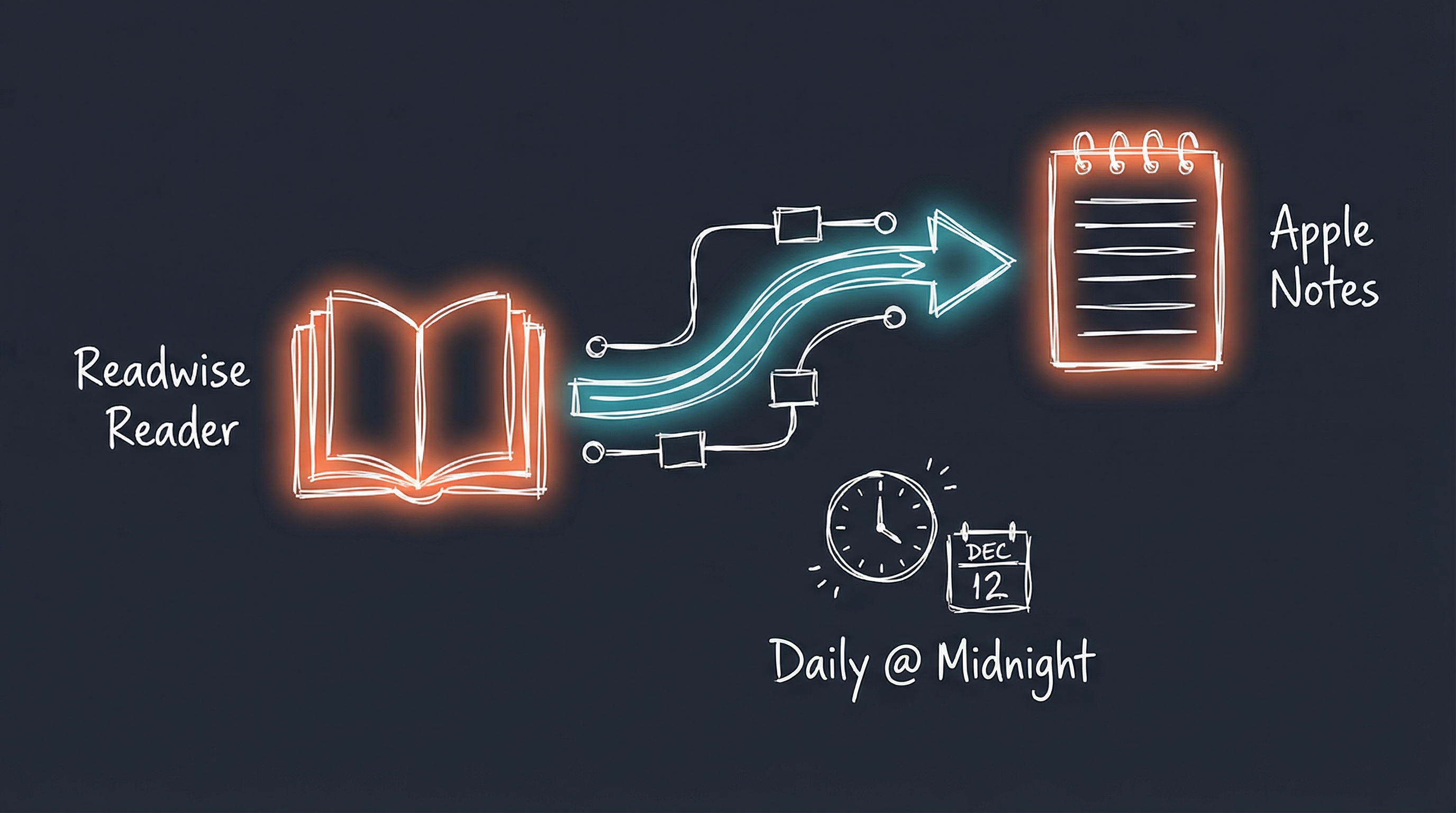
Automating Readwise Reader Sync to Apple Notes
This is pretty niche maybe, but I wanted to be able to search in once place for differnt content I save regularly. For different reasons I use Apple Notes for notes, Readwise Reader for RSS saved content and longer reads, and Karakeep for other items I want to refer to later (Github projects, etc).
For this I’ll go over the sync of my Readwise Reader “Archive” list to Apple Notes so that when I search for anything I can view it or even link back to the original. I have setups for Karakeep and Bear notes which I originally made this for. I only backup the Archive list as it’s where I save thing to refer to later (feeds and shortlists are delete eventually).
Note: Apple Notes seems to have some aversion to getting images in via this method. Have tried a few things, but links are a good enough workaround for quick viewing. If the post is image heavy, I just link back to the original.
You’ll be needing a Readwise subscription and get an API from their site to use with the scripts.
How It Works
A Python script that runs daily via macOS LaunchAgent. Here’s what it does:
- Fetches new/updated articles from Readwise Reader API
- Creates rich HTML notes in Apple Notes with:
- Article title, author, source, and publication date
- Word count and reading progress
- Direct links back to Readwise and the original source
- Full article content with formatting
- Tags preserved
- Tracks what’s already backed up to avoid duplicates
- Runs automatically every night at midnight
The system is smart about incremental updates—it only backs up articles that are new or have been updated since the last run. This keeps the daily sync fast.
Architecture Overview
The system has two main components:
1. Bash Wrapper (backup_to_applenotes.sh)
- Sets up Python virtual environment
- Loads API credentials from shared
.envfile - Handles command-line options
- Runs the Python script
2. Python Core (readwise_to_applenotes.py)
- Fetches documents from Readwise API with HTML content
- Generates formatted HTML for each article
- Creates notes in Apple Notes using AppleScript
- Tracks backup state in JSON config file
Smart Folder Detection
The script automatically detects which folder to use in Apple Notes:
def _determine_target_folder(self):
    """Try 0-Inbox first, fallback to Readwise."""
    if self._verify_folder_exists("0-Inbox"):
        logger.info("Using folder: 0-Inbox")
        return "0-Inbox"

    if self._verify_folder_exists("Readwise"):
        logger.info("Using folder: Readwise (0-Inbox not found)")
        return "Readwise"

    raise ValueError(
        "Neither '0-Inbox' nor 'Readwise' folder found. "
        "Please create one of these folders."
    )
I use “0-Inbox” as my default capture folder (the 0- prefix keeps it at the top of my folders list), but the script falls back to “Readwise” if that doesn’t exist. “Readwise” is the folder name the Readwise (not Reader) uses for it’s Apple Notes export integration for your highlights.
Incremental Sync
The script tracks which documents have been backed up in a config file:
{
  "last_backup_date": "2025-12-21T00:00:00",
  "backed_up_document_ids": ["abc123", "def456", ...],
  "total_documents_backed_up": 247
}
On each run, it only fetches documents updated since the last backup AND checks if the document ID has been backed up before. This makes daily syncs fast even with a large Readwise library.
Rich HTML Formatting
Each note includes a styled metadata box:
html = f"<h1>{self._html_escape(title)}</h1>\n\n"

html += "<div style='background-color: #f5f5f5; padding: 10px; margin-bottom: 20px;'>\n"
html += f"<p><strong>Author:</strong> {self._html_escape(author)}</p>\n"
html += f"<p><strong>Source:</strong> {self._html_escape(site_name)}</p>\n"
html += f"<p><strong>Date:</strong> {published_date}</p>\n"
html += f"<p><strong>Word Count:</strong> {word_count:,}</p>\n"
html += f"<p><strong>Reading Progress:</strong> {progress_percent}%</p>\n"

# Direct link back to Readwise Reader
direct_url = f"https://read.readwise.io/{location}/read/{article_id}"
html += f"<p><strong>Readwise Link:</strong> <a href='{direct_url}'>Open in Readwise Reader</a></p>\n"
html += "</div>\n\n"
This gives you quick access to the original article and all the metadata you might want.
Image Handling Workaround
Apple Notes doesn’t handle images well when created via AppleScript. Rather than lose the images entirely, this them to clickable links:
def replace_image(match):
    img_url = match.group(2)
    alt_match = re.search(r'alt=["\']([^"\']+)["\']', ...)
    alt_text = alt_match.group(1) if alt_match else "View Image"

    return f'<p><a href="{img_url}">🖼️ {alt_text}</a></p>'
You get a 🖼️ icon with the alt text that opens the image in your browser when clicked. Not perfect, but better than nothing.
AppleScript Integration
Creating notes programmatically in Apple Notes requires AppleScript. The challenge is passing HTML content without breaking it. I use a temporary file approach:
# Write HTML to temporary file
with tempfile.NamedTemporaryFile(mode='w', suffix='.html', delete=False) as f:
    f.write(html_body)
    html_file = f.name

# AppleScript reads from the file
script = f'''
set htmlFile to POSIX file "{html_file}"
set htmlContent to read htmlFile as «class utf8»

tell application "Notes"
    tell folder "{self.target_folder}"
        make new note with properties {{name:"{escaped_title}", body:htmlContent}}
    end tell
end tell
'''
This avoids quote escaping nightmares and handles large HTML content reliably.
Setup
Prerequisites
- macOS (for AppleScript integration)
- Python 3.6+
- Apple Notes with a folder named “0-Inbox” or “Readwise”
- Readwise Reader account with API access
Installation
1. Get your Readwise API token
Visit https://readwise.io/access_token and copy your token.
2. Configure the environment
My setup uses a shared .env file (I also have a Bear Notes version of this script):
# Location: /Users/matt/bin/readwise_backup/.env
READWISE_TOKEN=your_api_token_here
3. Grant permissions
When you first run the script, macOS will prompt for permission:
- System Settings → Privacy & Security → Automation
- Enable Terminal access to Notes
Usage
Manual backup:
cd /Users/matt/Documents/scripts/readwise_backup_applenotes
./backup_to_applenotes.sh
Command options:
# Test with just 5 documents
./backup_to_applenotes.sh --max-documents 5

# Force complete re-backup
./backup_to_applenotes.sh --full

# Backup all documents (not just archived)
./backup_to_applenotes.sh --all-documents

# Use specific folder
./backup_to_applenotes.sh --folder "My Readwise"
By default, the script only backs up archived documents. This is intentional—I use Readwise Reader as my reading queue, and only want completed articles that I want to keep in my permanent notes.
Automatic Daily Backups
A macOS LaunchAgent that runs the script every night at midnight:
<?xml version="1.0" encoding="UTF-8"?>
<!DOCTYPE plist PUBLIC "-//Apple//DTD PLIST 1.0//EN">
<plist version="1.0">
<dict>
    <key>Label</key>
    <string>com.user.readwise.applenotes</string>
    <key>ProgramArguments</key>
    <array>
        <string>/Users/matt/Documents/scripts/readwise_backup_applenotes/backup_to_applenotes.sh</string>
    </array>
    <key>StartCalendarInterval</key>
    <dict>
        <key>Hour</key>
        <integer>0</integer>
        <key>Minute</key>
        <integer>0</integer>
    </dict>
    <key>StandardOutPath</key>
    <string>/tmp/readwise_applenotes_backup.log</string>
    <key>StandardErrorPath</key>
    <string>/tmp/readwise_applenotes_backup_error.log</string>
</dict>
</plist>
Install it:
# Load the LaunchAgent
launchctl load ~/Library/LaunchAgents/com.user.readwise.applenotes.plist

# Verify it's running
launchctl list | grep applenotes

# Test manually (don't wait for midnight)
launchctl start com.user.readwise.applenotes
Logs go to /tmp/readwise_applenotes_backup.log for troubleshooting.
The Bear Notes Version
I mentioned I have a Bear Notes version too. It works similarly but saves articles as individual Markdown files that Bear picks up from its iCloud import folder:
/Users/matt/Documents/scripts/readwise_backup/
├── backup_to_individual_md.sh
├── readwise_to_individual_md.py
└── config/
Differences:
| Feature | Bear Backup | Apple Notes Backup |
|---|---|---|
| Format | Markdown | HTML |
| Delivery | File drops to iCloud | AppleScript |
| Folder | Bear Inbox | 0-Inbox or Readwise |
| Dependencies | requests, html2text | requests only |
| Images | Embedded URLs | Clickable links |
Both share the same .env file with my Readwise API token, and both run independently at midnight. You can run both simultaneously without conflicts. Reach out if you want that too.
Limitations and Considerations
Only works on macOS AppleScript is macOS-only. If you’re on Windows or Linux, you’ll need a different approach (maybe the Obsidian or Notion APIs?).
Images aren’t embedded Due to Apple Notes limitations with AppleScript, images become clickable links. It’s a workaround, not ideal, but functional.
Archived documents only by default
The script defaults to --archive-only mode. If you want everything from your reading queue too, use --all-documents.
Needs permissions macOS security requires you to explicitly grant Terminal access to Apple Notes. This is a one-time setup but can be confusing if you forget.
Troubleshooting
“Neither ‘0-Inbox’ nor ‘Readwise’ folder found” Create one of these folders in Apple Notes before running the script.
“Permission denied” error System Settings → Privacy & Security → Automation → Enable Terminal access to Notes.
Notes not appearing Check the logs:
tail -f /Users/matt/Documents/scripts/readwise_backup_applenotes/readwise_applenotes_backup.log
LaunchAgent not running
# Check if loaded
launchctl list | grep applenotes

# Reload if needed
launchctl unload ~/Library/LaunchAgents/com.user.readwise.applenotes.plist
launchctl load ~/Library/LaunchAgents/com.user.readwise.applenotes.plist
Files and Structure
/Users/matt/Documents/scripts/readwise_backup_applenotes/
├── backup_to_applenotes.sh              # Main entry point
├── readwise_to_applenotes.py            # Core Python script
├── config/
│   └── applenotes_backup_config.json    # Tracks backup state
├── venv/                                 # Python virtual environment
├── readwise_applenotes_backup.log       # Detailed logs
└── README.md                             # Documentation
Here’s what a backed-up article looks like in Apple Notes:
Article Title
Author: Author Name Source: website.com Date: 2025-12-21 Word Count: 2,847 Reading Progress: 100% Readwise Link: Open in Readwise Reader Original Link: https://website.com/article-url
Summary
[Article summary if available]
[Full article content with formatting]
#productivity #automation #readwise
AI Influence Level: AIL2